使用 Mega 插件实现遮挡
遮挡 (Occlusion) 是提升 AR 虚实融合沉浸感的关键技术。本文将指导您如何在 xr-frame 环境下,通过 EasyAR 云定位与标注实现遮挡效果。
开始之前
遮挡的实现方式
离线建模:利用 Unity 编辑器在 Block 坐标系下,针对现实世界中的实体(如墙体、立柱、大型设备)创建 1:1 匹配的几何体;或通过对 Block 稠密模型进行裁剪与减面处理得到优化后的模型。
运行时对齐:在 xr-frame 运行时,通过云定位将 Block 坐标系与现实空间对齐,并加载对应的几何体。
材质替换:为这些几何体赋予特殊的遮挡材质。
视觉效果:当 GPU 渲染其他虚拟物体时,会因深度测试未通过而自动剔除被遮挡部分的像素,从而使虚拟物体遵循现实物理空间的遮挡逻辑。
如何布置简单几何体的遮挡
对照稠密模型及全景图精确摆放方块标注。摆放后标注看起来就像是一面“墙”或者“柱子”。
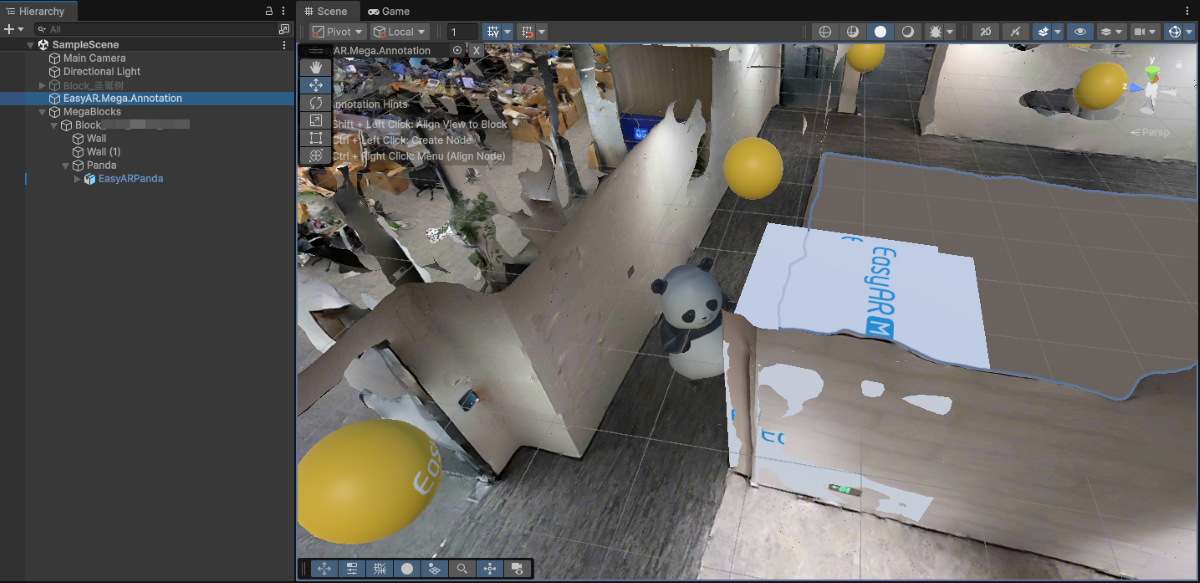
修改标注的名称(如
occlusion_wall),记录 ID ,上传标注。在 xr-frame 小程序中利用其内置几何体加载作为遮挡的标注。
在 EMA 加载的回调中使用
scene.createElement(xrFrameSystem.XRMesh,{})创建简单的几何体赋予easyar-occulusion材质。注意
easyar-occulusion材质的加载,注册,反注册,卸载由 AR Session 控制。
```ts
handleEmaResult(ema: easyar.ema.v0_5.Ema) {
    let blockHolder: easyar.BlockHolder = session.blockHolder;
    ema.blocks.forEach(emaBlock => {
        const blockInfo: easyar.BlockInfo = {
            id: emaBlock.id
        };
        // 若 Block 节点不存在,创建 Block 节点
        blockHolder.holdBlock(blockInfo, easyarPlugin.toXRFrame(emaBlock.transform));
    });
    ema.annotations.forEach(annotation => {
        if (annotation.type != mega.EmaV05AnnotationType.Node) {
            return;
        }
        const nodeAnnotation = annotation as easyar.ema.v0_5.Node;
        const xrNode: xrfs.XRNode = easyarPlugin.createXRNodeFromNodeAnnotation(nodeAnnotation, blockHolder);
        const emaName: string = nodeAnnotation.name;
        const geometryStr: string = nodeAnnotation.geometry === "cube" ? "cube" : "sphere";
        const assetInfo = AnnotationMetaData[nodeAnnotation.id as keyof typeof AnnotationMetaData];
        let model: xrfs.Element;

        if (assetInfo) {
            // GLTF部分
        } else {
            model = scene.createElement(
                xrFrameSystem.XRMesh,
                {
                    // 使用插件注册好的遮挡材质
                    material: "easyar-occlusion",
                    // 使用 xr-frame 内置几何体,此处也可以直接使用 "cube"
                    geometry: geometryStr,
                    name: emaName,
                    "receive-shadow": "false",
                    "cast-shadow": "false"
                    // 注意不要修改 Scale
                }
            );
            xrNode.addChild(model);
        }
    })
}
```
<video src="https://doc-asset.easyar.com/develop/wechat/mega/media/occlusion03.mp4" style="width:480px; max-width:100%; height:auto;" muted playsinline controls></video>

> 有了遮挡后,这个熊猫就可以躲在墙后面跳舞了。
如何布置复杂几何体的遮挡
适用于异形设备、不规则建筑等需要高精度遮挡的场景。
您可以利用 Block 的稠密模型裁剪并减面得到您需要用于遮挡的白模。
在 Unity 场景中点击 Mega Block 节点,在 Inspector 面板中记录 BlockID
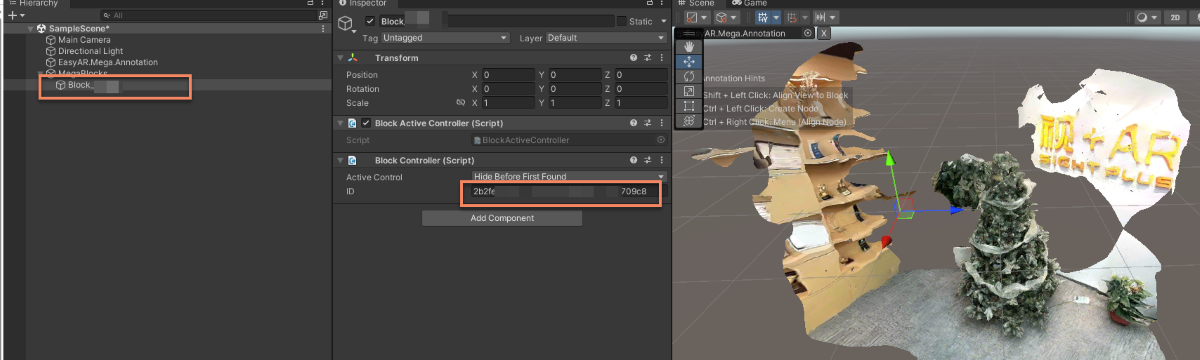
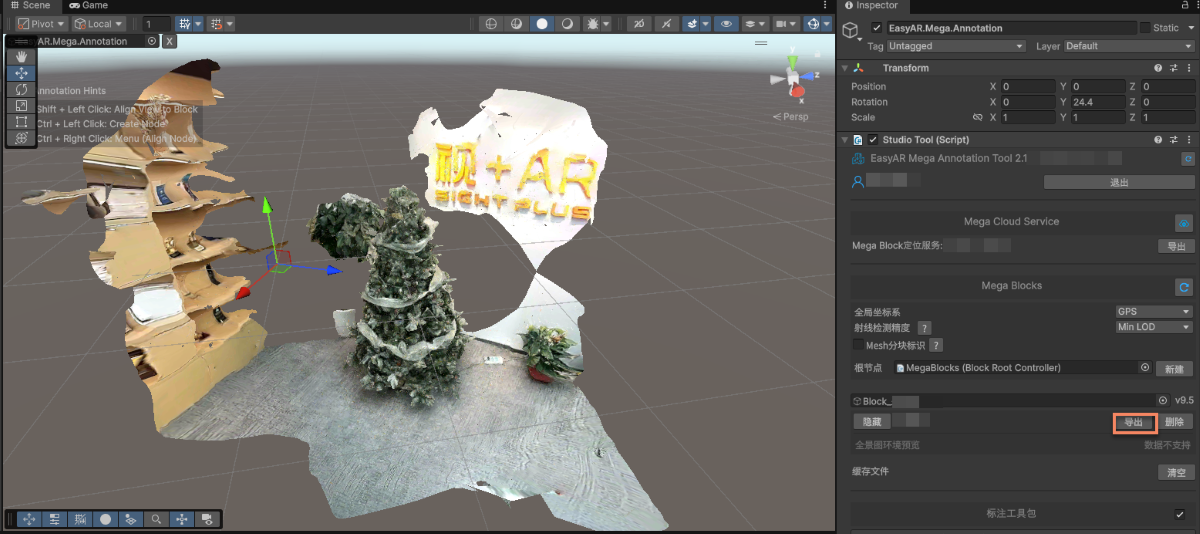
在 Mega Studio 的 Block 中选择导出。
修改导出选项后导出。
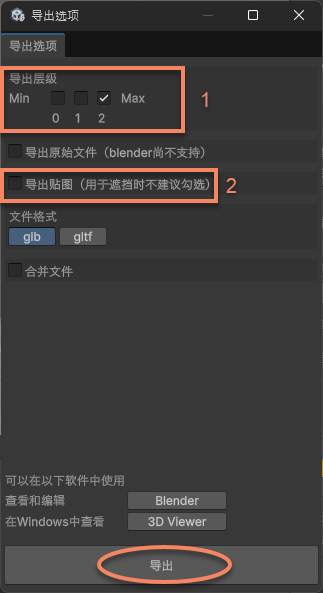
图中 1 为 LOD 层级,层级越低模型越简单,面数越少,若需要最高的精度选择2,若能接受降低精度以减少面数选择 1 或者 0。
图中 2 为导出贴图选项,由于我们只需要白模作为遮挡,不需要贴图。
将导出后的模型在数字内容创建软件(例如 Blender)中进行裁剪,减面,保存为
Glb。提示
例子中使用的是 Blender 的 Decimate Modifier
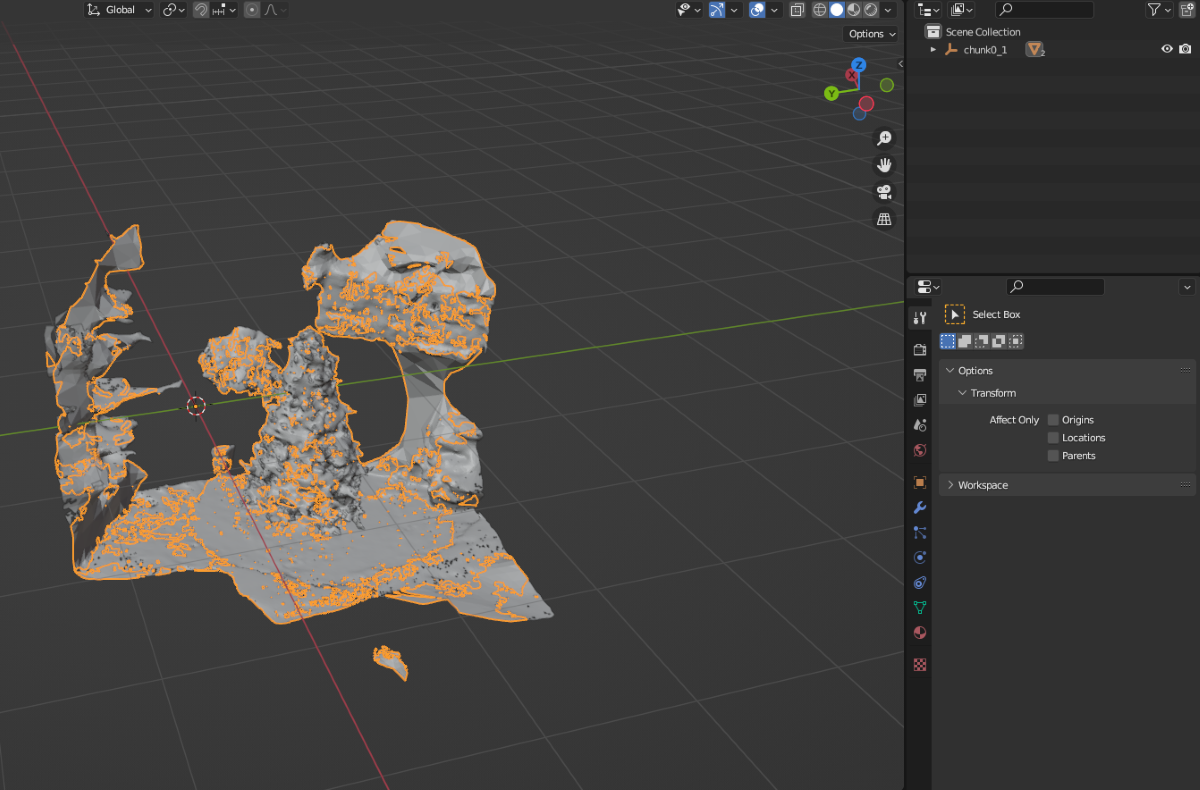
裁剪并减面后:
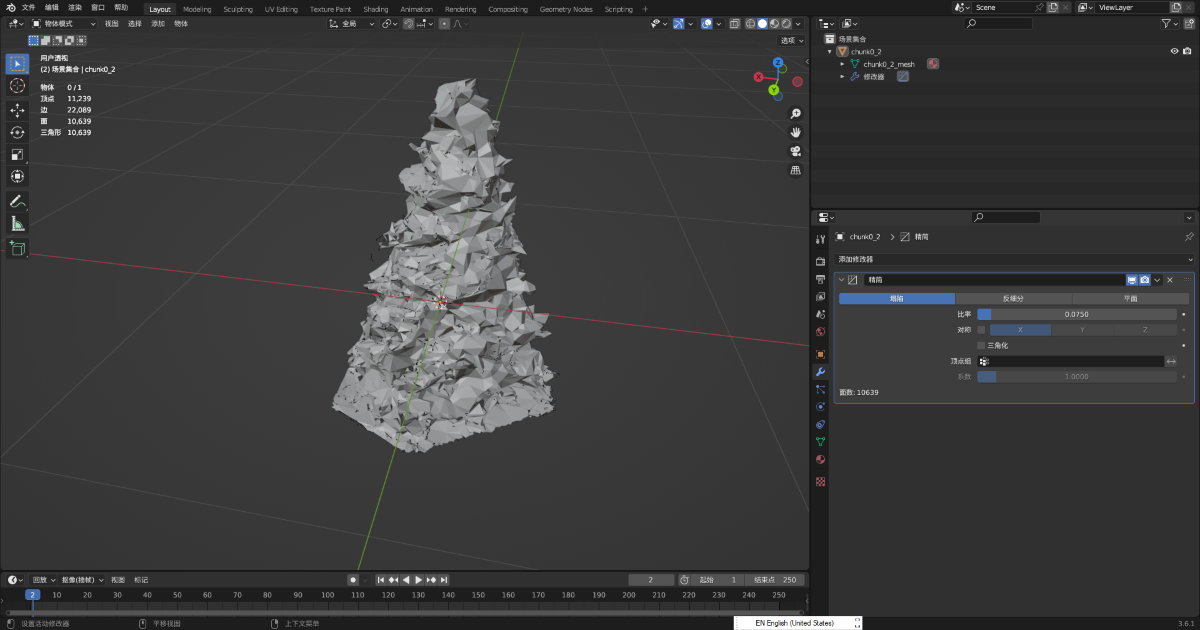
将遮挡用的
Glb文件挂载到文件服务器,得到一个用于加载的 url。在 xr-frame 小程序中加载作为遮挡的 GLTF。
首先加载遮挡用的 GLTF 模型,然后使用
scene.createElement(xrFrameSystem.XRGLTF,options)创建 GLTF 模型。使用
assets.getAsset("material", "easyar-occlusion")获取材质对象使用
model.getComponent(xrFrameSystem.GLTF).meshes.forEach((m: any) => {m.setData({ neverCull: true, material: occlusionMaterial });}修改 GLTF 模型的材质。注意
easyar-occulusion材质的加载,注册,反注册,卸载由 AR Session 控制。
```ts
const sampleAssets = {
    occlusion1: {
        assetId: "occlusion1",
        type: "gltf",
        src: "url/occlusion1.glb",
        options: {}
    }
}
async loadAsset() {
    if (!scene) {console.error("Empty scene"); return;}
    try {
        await scene.assets.loadAsset(sampleAssets.occlusion1);
    } catch (err) {
        console.error(`Failed to load assets: ${err.message}`);
    }
},
addOcclusion() {
    model = scene.createElement(
        xrFrameSystem.XRGLTF,
        {
            "model": assetInfo.assetId,
            "anim-autoplay": assetInfo.animation ? assetInfo.animation : "",
            "scale": assetInfo.scale ? assetInfo.scale : "1 1 1",
            name: "tree"
        }
    );
    const blockID = "aaaa1234-bbbb-cccc-dddd-eeeeee123456" //此处应填写 Block ID
    if (!blockHolder.getBlockById(blockParent.id)) {
        // 若没有存在的 Block 节点,则创建一个
        blockHolder.holdBlock({
            id: blockID
        })
    }
    // 获取 xr-frame 场景中的 Block 节点
    let blockElement = blockHolder.getBlockById(blockParent.id).el;
    // 将裁剪后的遮挡模型挂载到 Block 节点下,作为其子节点
    blockElement.addChild(model);
    /**
     * 由于 GLTF 加载器的行为不同,为了保证模型在 xr-frame 上的朝向 与 Unity 的渲染结果完全一致
    * 有时需要对加载后的模型原地绕 Y 轴旋转 180 度
    */
    let modelTransform = model.getComponent(xrFrameSystem.Transform);
    let currentRotation = modelTransform.quaternion.clone();
    let targetRotation = currentRotation.multiply(new xrFrameSystem.Quaternion().setValue(0, 1, 0, 0));
    modelTransform.quaternion.set(targetRotation);
    //注意必须在修改 Transform 后修改材质
    if (assetInfo.assetId == 'occlusion1') {
        //获取 mega 插件提供的遮挡材质
        let occlusionMaterial = scene.assets.getAsset("material", "easyar-occlusion");
        //修改遮挡材质
        model.getComponent(xrFrameSystem.GLTF).meshes.forEach((m: any) => {
            m.setData({ neverCull: true, material: occlusionMaterial });
        });
    }
}
```
> [!NOTE]
> 这里使用 Mega Block 稠密模型进行裁剪后作为遮挡不需要使用标注同步空间位置,这是因为在数字内容创建软件(如 Blender) 中,可以在不改变坐标系定义的情况下对模型进行减免和裁剪。
>
> 若需要精确摆放自己制作的 GLTF 模型遮挡,请参考[如何摆放与空间对齐的遮挡模型](./sample.md#wechat-mega-sample-precise-occulusion-model)

最终实机运行效果见文章顶部视频。
遮挡的效果预期
xr-frame 小程序上遮挡的效果主要由以下几点影响:
- 定位跟踪本身的精度
- 模型摆放的准确程度
- 模型本身的精度(如果不是简单的几何体)
在定位漂移时出现数公分未对齐的情况是正常的。
遮挡用的模型面数太多容易影响性能,建议只在必要区域使用,并且尽量使用简单的几何体作为遮挡。