微信小程序 Mega 插件示例工程说明
这篇文章详细说明了示例工程展示的各功能使用方法,实现方式与注意事项。
开始之前
- 能够使用 Unity 编辑器创建并上传标注,并记录标注名称与其 ID。
- 能够使用 Unity 编辑器创建与实景对齐的 3D 内容。
- 能够完整运行示例工程。
如何在标注位置展示模型
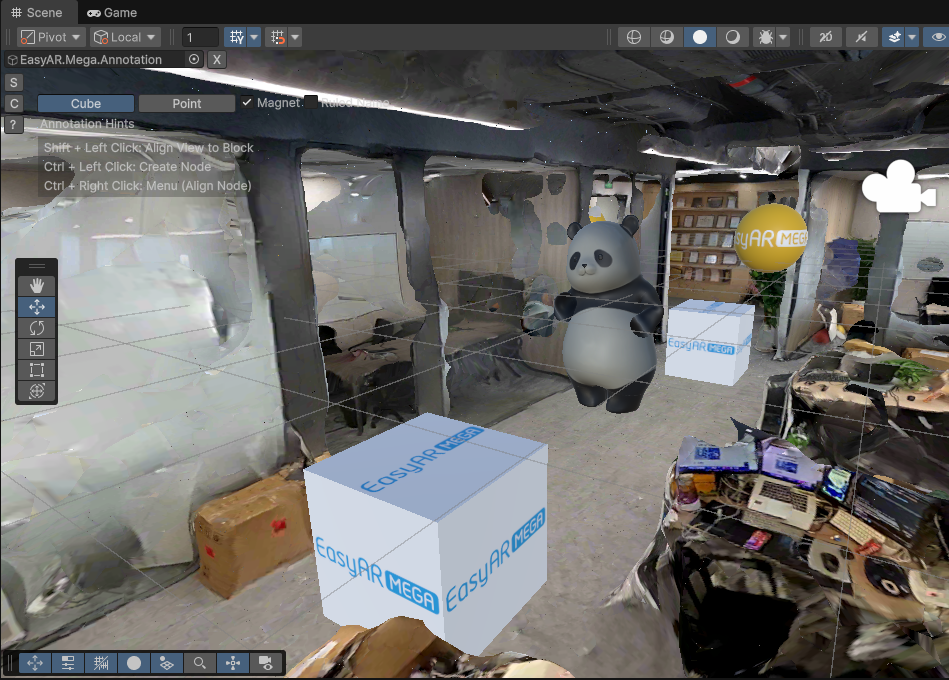
在 Unity 编辑器中精确摆放并上传标注,记录标注名称与其 ID
添加 GLTF 模型资源
在
miniprogram/components/sample-easyar-mega/index.ts中的sampleAssets中添加模型资源。const sampleAssets = { your_model_name: { assetId: "your_model_asset_id", type: "gltf", src: "url/model.glb", options: {} } }加载添加的模型资源
在
miniprogram/components/sample-easyar-mega/index.ts中的loadAsset()函数中加载模型。async loadAsset() { try { await scene.assets.loadAsset(sampleAssets.your_model_name); } catch (err) { console.error(`Failed to load assets: ${err.message}`); } }配置要替换的标注
在
miniprogram/components/sample-data/annotation-metadata.ts中配置要替换的标注,如果要替换多个则用逗号隔开。export const AnnotationMetaData: Record<string, any> = { "aaaaaaaa-bbbb-cccc-dddd-123456789012": { assetId: "panda", scale: "0.5 0.5 0.5" }, "aaaaaaaa-bbbb-cccc-dddd-123456789013": { assetId: "your_model_asset_id", scale: "1 1 1" } };替换标注加载模型
在 EMA 加载的回调中使用 xr-frame 的“工厂方法”
scene.createElement(xrFrameSystem.XRGLTF, options)创建模型节点。参数:
xrFrameSystem.XRGLTF:指定创建的元素类型为 GLTF 模型。options:初始化配置项,对应组件的属性。
代码中的关键属性:
"model":必填,指向已加载的资源 ID(asset-id)。"anim-autoplay":选填,指定加载后自动播放的动画名称。"scale": 选填,assetInfo.scale或 "1 1 1"。name: 必填,标注名称。
小心
注意区分属性 Key 的字符串和非字符串,完全按照示例中的方式填写。
将模型挂载到标注节点下
xrNode.addChild(child)。为了保证 GLTF 模型在不同平台的加载器下看到一样的结果,需要对加载后的模型原地绕 Y 轴旋转 180 度。
if (assetInfo && assetInfo.assetId && assetInfo.assetId.trim().length > 0) {
    model = scene.createElement(
        xrFrameSystem.XRGLTF,
        {
            /** 即前一步骤中的 assetId */
            "model": assetInfo.assetId,
            /** 可以在此处指定播放的模型动画 */
            "anim-autoplay": assetInfo.animation ? assetInfo.animation : "",
            "scale": assetInfo.scale ? assetInfo.scale : "1 1 1",
            name: emaName
        }
    );
    xrNode.addChild(model);
    /**
     * 由于 GLTF 加载器的行为不同,为了保证模型在 xr-frame 上的朝向 与 Unity 的渲染结果完全一致
     * 需要对加载后的模型原地绕 Y 轴旋转 180 度
     */
    let modelTransform = model.getComponent(xrFrameSystem.Transform);
    let currentRotation = modelTransform.quaternion.clone();
    let targetRotation = currentRotation.multiply(new xrFrameSystem.Quaternion().setValue(0, 1, 0, 0));
    modelTransform.quaternion.set(targetRotation);
}
实机运行
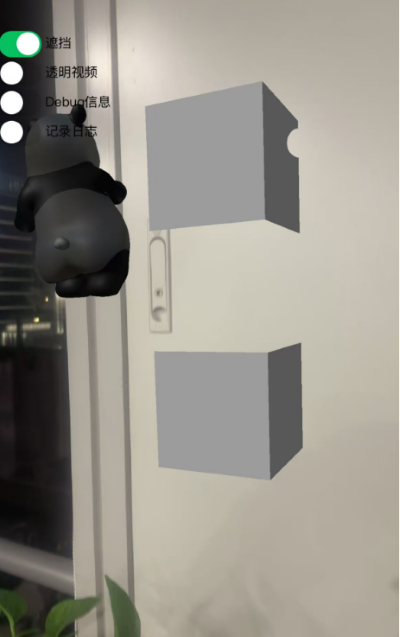
实机运行的结果如下,可以与第 1 步中 Unity 编辑器上的位置进行比照:
打开左侧透明视频按钮,世界坐标系原点(坐标为
(0, 0, 0)的位置)出现透明视频材质的方块。注意
原点位置可能是随机在空间中的任意位置。可以利用标注将遮挡模型放置到您希望的位置,详见使用 Unity 编辑器创建并上传标注。
打开左侧遮挡按钮,世界坐标系原点(坐标为
(0, 0, 0)的位置)出现熊猫模型和上下层叠的方块,中间的方块具有遮挡材质,另一侧有一个带有遮挡材质的静态熊猫模型。注意
原点位置可能是随机在空间中的任意位置。可以利用标注将遮挡模型放置到您希望的位置,详见使用 Unity 编辑器创建并上传标注。
如何将透明视频在标注位置播放
加载类型为
video-texture的视频资源。async loadAsset() { const videoTexture = { assetId: "fireball", type: "video-texture", // 视频资源 URL src: "url/video-resource.mp4", options: { autoPlay: true, loop: true, } }; try { // 加载 video-texture 类型资源 await scene.assets.loadAsset(videoTexture); } catch (err) { console.error(`Failed to load video texture: ${err.message}`); } }修改 EMA 加载回调
在 EMA 加载的回调中使用
scene.createElement(xrFrameSystem.XRMesh,options)创建简单的几何体赋予easyar-video-tsbs材质, 并修改uniform为u_baseColorMap:video-{$assetId}。参数:
xrFrameSystem.XRMesh:指定创建的元素类型为基础几何体。options:初始化配置项,对应组件的属性。
代码中的关键属性:
"geometry": "cube":使用 xr-frame 内置的立方体几何数据。"material": "easyar-video-tsbs":指定一个预定义的材质(根据命名推测,这是一个支持视频纹理的特殊材质)。"uniforms": "u_baseColorMap:video-{$assetId}":
小心
注意区分属性 Key 的字符串和非字符串,完全按照示例中的方式填写。
这是材质参数的动态绑定。
它将名为
video-{$assetId}的视频资源(纹理)映射到了材质的基色图上。效果:这会产生一个表面正在播放视频的立方体。
model = scene.createElement(xrFrameSystem.XRMesh, {
    geometry: "cube",
    material: "easyar-video-tsbs",
    uniforms: "u_baseColorMap:video-fireball",
});
xrNode.addChild(model);
注意
在使用
video-texture时,若控制台出现wx.createVideoDecoder with type: 'wemedia' is deprecated警告,请忽略。经与微信官方团队确认,该警告不影响使用。
实机运行
如何摆放与空间对齐的遮挡模型
精确摆放用于遮挡的模型并上传标注。
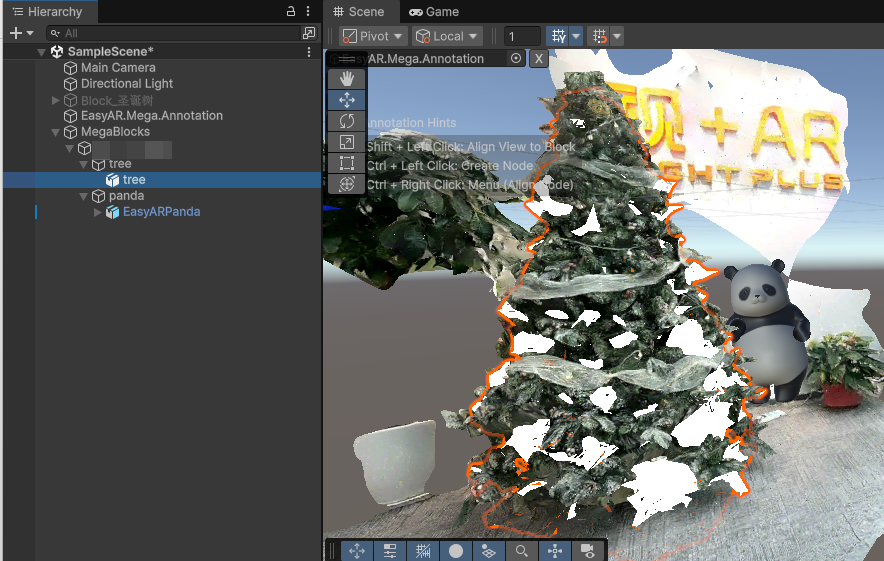
在 xr-frame 小程序中加载作为遮挡的 GLTF。
通过
scene.assets.loadAsset()加载模型资源(需要手动卸载)。const sampleAssets = { occlusion1: { assetId: "occlusion1", type: "gltf", src: "url/occlusion1.glb", options: {} } } async loadAsset() { if (!scene) {console.error("Empty scene"); return;} try { await scene.assets.loadAsset(sampleAssets.occlusion1); } catch (err) { console.error(`Failed to load assets: ${err.message}`); } }运行时在 EMA 加载回调中加载模型并赋予遮挡材质
在 EMA 加载的回调中使用
scene.createElement(xrFrameSystem.XRGLTF,options)创建模型节点。参数:
xrFrameSystem.XRGLTF:指定创建的元素类型为 GLTF 模型。options:初始化配置项,对应组件的属性。
代码中的关键属性:
"model":必填,指向已加载的资源 ID(asset-id)。"scale": 选填assetInfo.scale或 "1 1 1"。name: 必填,标注名称。
小心
注意区分属性 Key 的字符串和非字符串,完全按照示例中的方式填写。
将模型挂载到标注节点下
xrNode.addChild(child)。为了保证 GLTF 模型在不同平台的加载器下看到一样的结果,需要对加载后的模型原地绕 Y 轴旋转 180 度。
最终使用
model.getComponent(xrFrameSystem.GLTF).meshes.forEach((m: any) => {m.setData({ neverCull: true, material: occlusionMaterial });}修改 GLTF 模型的材质。注意
easyar-occulusion材质的加载,注册,反注册,卸载由 AR Session 控制。使用模型在标注位置作为遮挡:
if (...) {
    model = scene.createElement(
        xrFrameSystem.XRGLTF,
        {
            "model": assetInfo.assetId,
            "scale": assetInfo.scale ? assetInfo.scale : "1 1 1",
            name: emaName
        }
    );
    /**
    * 由于 GLTF 加载器的行为不同,为了保证模型在 xr-frame 上的朝向 与 Unity 的渲染结果完全一致
    * 有时需要对加载后的模型原地绕 Y 轴旋转 180 度
    */
    let modelTransform = model.getComponent(xrFrameSystem.Transform);
    let currentRotation = modelTransform.quaternion.clone();
    let targetRotation = currentRotation.multiply(new xrFrameSystem.Quaternion().setValue(0, 1, 0, 0));
    modelTransform.quaternion.set(targetRotation);
    //注意必须在修改 Transform 后修改材质
    if (assetInfo.assetId == 'occlusion1') {
        //获取 mega 插件提供的遮挡材质
        let occlusionMaterial = scene.assets.getAsset("material", "easyar-occlusion");
        //修改遮挡材质
        model.getComponent(xrFrameSystem.GLTF).meshes.forEach((m: any) => {
            m.setData({ neverCull: true, material: occlusionMaterial });
        });
    }
}
实机运行
可与 Unity 编辑器上模拟运行的结果进行比照。